Send the week
Nothing reaches a worker until you send it. Then each one hears about their own shifts.
Where to do it: Anywhere.
Step by step
-
Finish moving things around. Every shift is a draft until now, and drafts are invisible to workers.
-
Look at the Send button. It counts the shifts with somebody on them that have not been sent yet — "Send 4 shifts". It counts the whole week, not the day on screen.
-
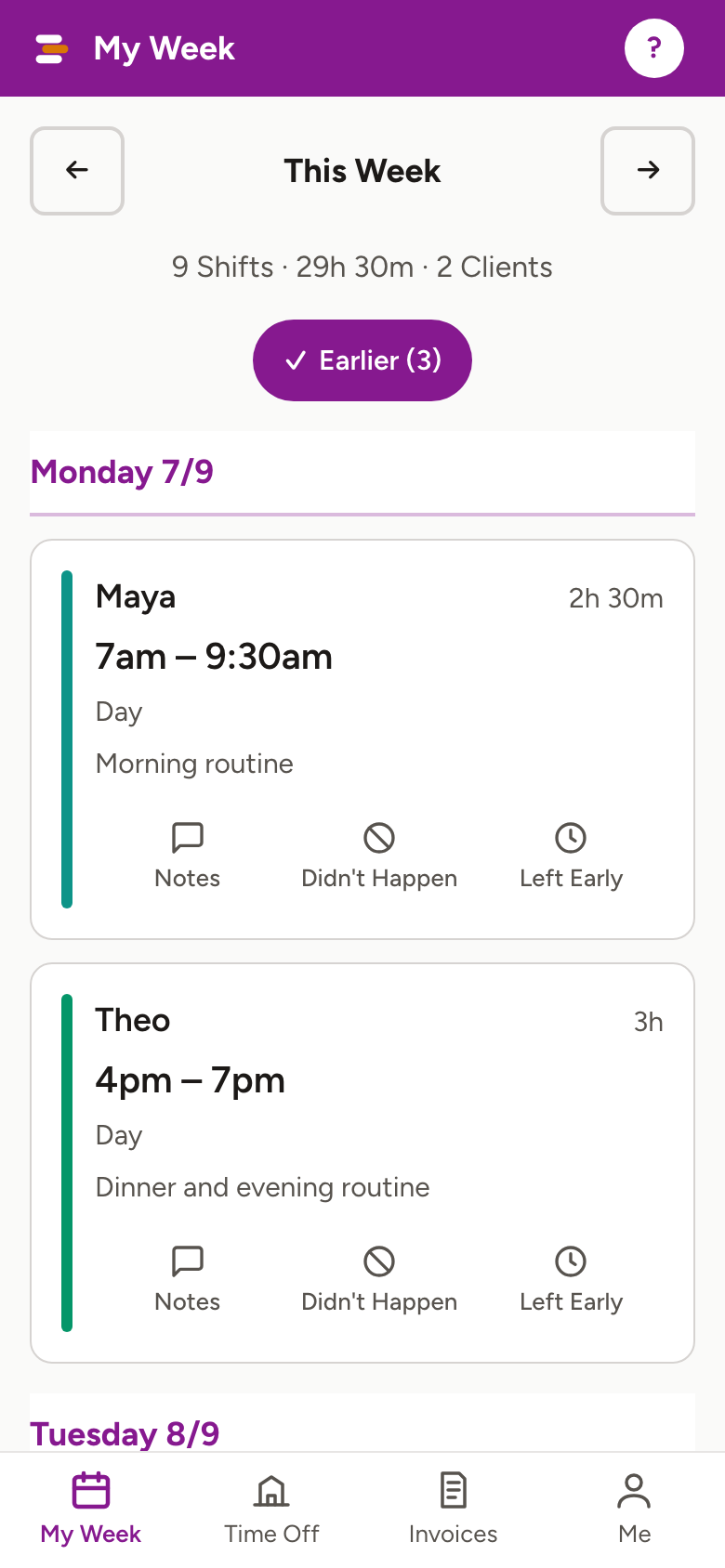
Press it. Each worker gets one message: "Your week with Fletch — 4 shifts, the first on Tue 9 Sep, 8am–6pm." Tapping it opens their week.
-
Change something later and the shift shows as changed since it was sent. Press Send Them Now and only the people affected hear about the change.
-
Just one person to tell? Open that shift and press Save & Send This One. It saves what is on screen, tells them, and leaves the rest of the week alone.
Worth knowing
- A shift nobody has been told about is marked: a dashed edge, a folded corner, and the words "Not sent yet" or "Changed — not sent yet".
- The little dot under each day says whether that day needs you. Red means somebody is needed, amber means something is unsent, grey means the day is settled.
- Send never texts. It goes to the app, with an email as a copy. A text is kept for things that cannot wait.
- Shifts with nobody on them are not sent — there is nobody to send them to. They have their own button, Offer All Around, or you can ask particular people — or everyone — from the shift itself.
- A shift that has already started can still be sent. Only one that has finished cannot.
More for running a roster
Still stuck?
Email support@shiftaroo.app and a person will reply.