Set up your roster and lay out the first week
From nothing to a week your support workers can see, in one sitting.
Where to do it: A laptop or a tablet for this one. Laying a week out from scratch wants the room; everything after it is fine on a phone.
Step by step
-
Go to shiftaroo.app and sign in with your email. We send a link — there is no password to make up.
-
Say who the roster is for. Their first name is all the app ever shows.
-
Pick the day your week starts on. It does not have to be Monday — if your plan or your routine runs Wednesday to Tuesday, choose Wednesday. Every week, summary and copy follows that day.
-
Add your support workers under Your Team: a name and an Australian mobile number each. They get one text with a link. You can carry on without waiting for them.
-
Set what you pay each worker: open their card, choose the kind of support they do (daily living, high intensity, community access or nursing), then type your agreed hourly rate for each time band. Rates start empty — nothing is assumed.
-
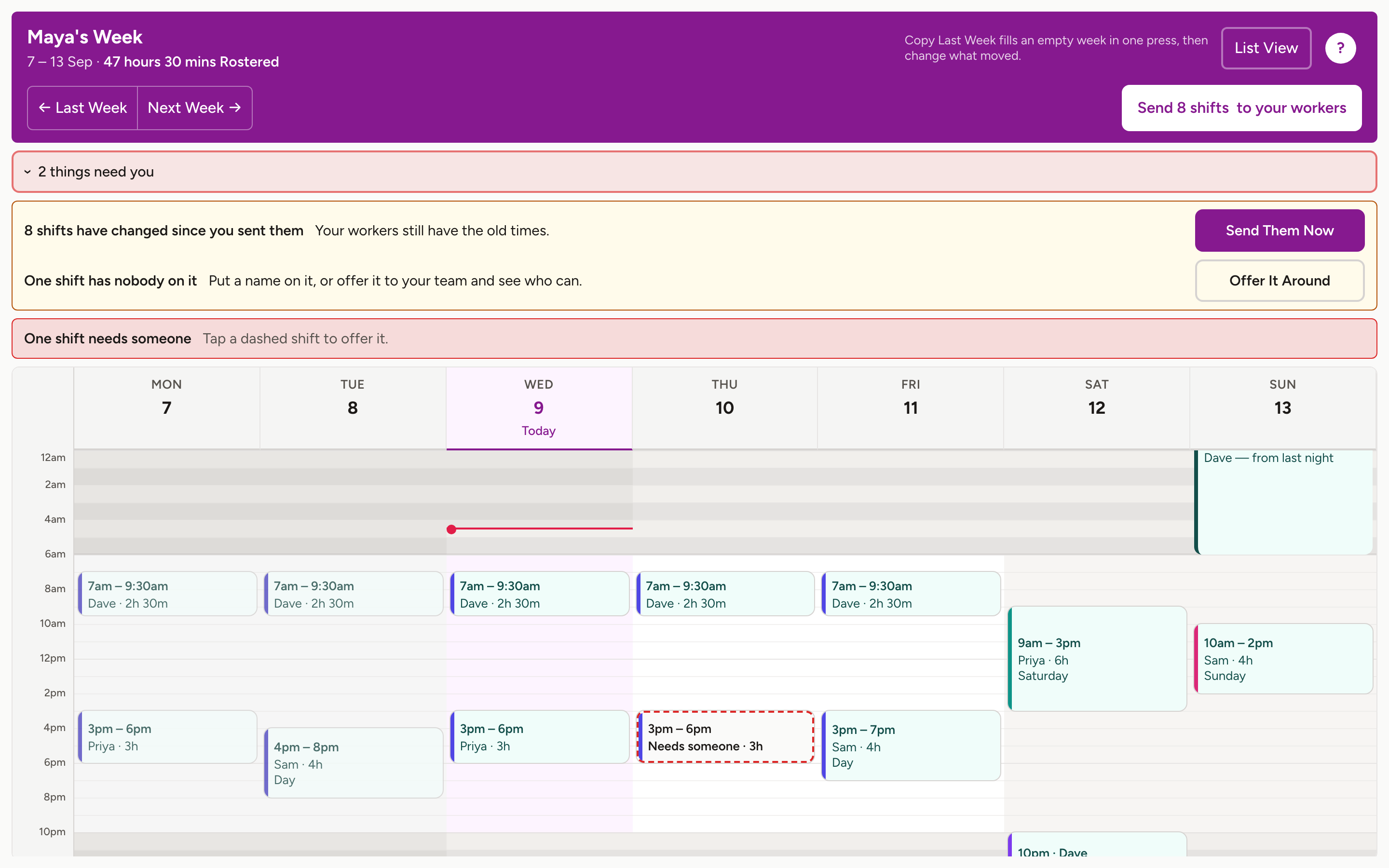
On the Week screen, drag down a day to draw a shift, then tap a name to put somebody on it. Drag the top or bottom edge to change the times. Tap a shift and type exact times if you need, say, 5:50 to 8:50.
-
When the week looks right, press Send. Each worker gets one message about their own shifts, and nothing else.
Worth knowing
- You cannot put a worker on a shift until they have signed in once. Until then their invite shows as waiting. Draw the shifts anyway and put names on them when they are in.
- Everything is a draft until you press Send, so nobody is pestered while you are still moving things around.
- The 14-day trial needs no card, and it is free for support workers.
More for running a roster
Still stuck?
Email support@shiftaroo.app and a person will reply.